
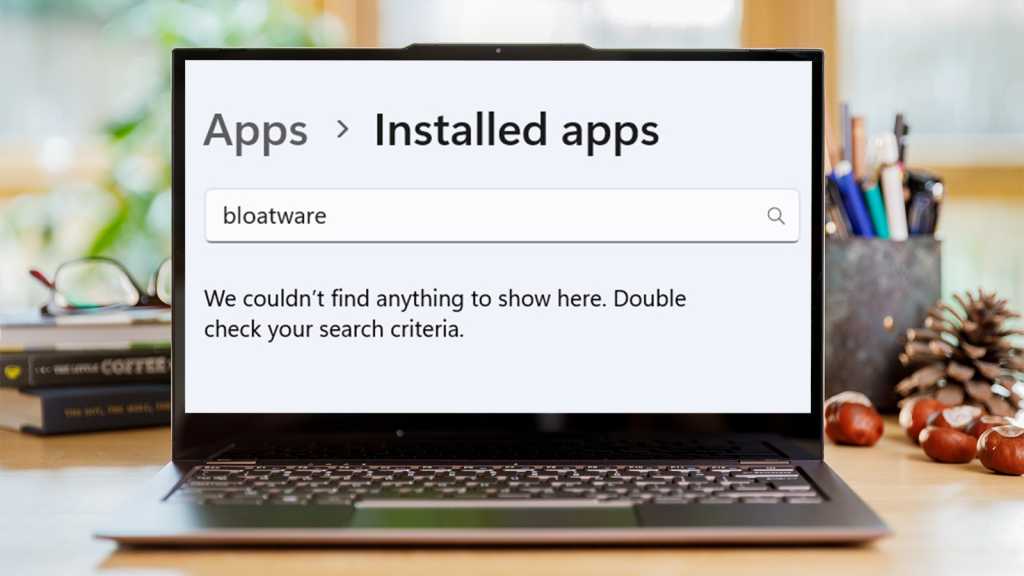
Windows 11 arrived with much fanfare, promising a sleek, modern, and intuitive experience. And while it certainly brings some welcome aesthetic changes and performance boosts, many users quickly discover a less appealing reality: a system often burdened by pre-installed applications, persistent advertisements, and intrusive data collection practices. It’s like moving into a beautiful new apartment only to find it already cluttered with unwanted furniture and noisy neighbors.
The good news? You don’t need expensive software or advanced degrees in computer science to reclaim your digital space. With a little time and a few clicks, you can significantly declutter Windows 11, silence the noise, and enjoy a faster, more private computing experience—all for free.
Ditching the Digital Clutter: Bloatware and Unwanted Apps
The most immediate and often frustrating culprits are the pre-installed applications. Manufacturers frequently load up new PCs with trialware, redundant utilities, and games you’ll never touch. Microsoft also contributes to this, bundling apps like Teams, Clipchamp, and various Xbox services that not everyone needs or wants. This isn’t just an aesthetic issue; these apps consume storage, system resources, and can even run in the background, slowing things down.
Your first line of defense is the “Installed apps” section in Settings. To get there, simply navigate to Settings > Apps > Installed apps. Here, you’ll find a comprehensive list of everything on your system. Scroll through it carefully. Look for apps from your PC manufacturer (often branded with their name), games you don’t play, or utilities that duplicate Windows’ built-in features. If you find something you don’t need, click the three dots next to its name and select Uninstall.
“It’s like buying a brand new car and finding it pre-filled with someone else’s junk,” remarks tech enthusiast, Alex Chen, echoing a common sentiment among users. “Taking control of what’s installed is the first step to truly owning your device.”
Be mindful not to uninstall essential system components or drivers. If you’re unsure about an app, a quick web search can clarify its purpose. Many default Microsoft apps like Mail, Calendar, Calculator, and Photos are generally safe to keep unless you prefer alternatives.
Silencing the Noise: Ads and Privacy Intrusions
Once you’ve cleared the app clutter, the next step is tackling the pervasive ads and data collection features that sneak into various corners of Windows 11. These aren’t just annoying; they can feel like a constant invasion of your digital privacy.
Let’s start with the most visible culprits:
- Start Menu Recommendations: You’ve probably seen “recommended” apps or “tips” appearing in your Start Menu. To disable these, go to Settings > Personalization > Start and toggle off “Show recommendations for tips, shortcuts, new apps, and more.”
- Lock Screen Ads: Windows 11 can display “fun facts” and promotions on your lock screen. Turn this off by heading to Settings > Personalization > Lock screen. Under “Personalize your lock screen,” select Picture or Slideshow, and then toggle off “Get fun facts, tips, tricks, and more on your lock screen.”
- Widgets Panel: If you don’t use the Widgets panel (accessed by hovering over the taskbar icon), it can be a source of news feeds and other distractions. While you can customize its content, you can also simply hide the icon from your taskbar by right-clicking an empty space on the Taskbar and selecting Taskbar settings, then toggling off Widgets.
Beyond ads, Windows 11 has numerous privacy settings worth reviewing. Navigate to Settings > Privacy & security. Take your time to explore each section:
- General: Turn off options like “Let apps show me personalized ads…” and “Let websites show me locally relevant content…” to limit targeted advertising.
- Diagnostics & feedback: While some diagnostic data helps Microsoft improve Windows, you can significantly reduce the amount collected. Choose “Required diagnostic data” instead of “Optional diagnostic data.”
- Activity history: If you prefer to keep your device activity private, uncheck “Store my activity history on this device” and “Send my activity history to Microsoft.”
Reclaiming Control: A Faster, Cleaner PC
By taking these steps, you’re not just removing junk; you’re reclaiming control over your computing experience. Your PC will likely feel snappier due to fewer background processes and less system resource contention. Your privacy will be enhanced, and your interactions with Windows 11 will be less interrupted by unwanted distractions.
Enjoy a cleaner, faster, and more private Windows 11 that truly works for you, not just for Microsoft and its partners. It’s your PC, after all—it should feel like it.